Neway App Not Working? Fixes for Debug Mode, Jailbreak Warnings and Registration Errors
Neway is a new app, and many users have hit problems since it launched in March 2026. Some can’t open it, some see a security warning on a phone that has nothing wrong with it, and some get stuck during registration.
This guide lists the errors people have actually reported, explains what each one probably means, and gives the steps most likely to help. It also tells you what to try first, who to contact, and which “problems” are normal behavior, such as trying to trade when the market isn’t taking orders.
An honest note: ESX and Infotech haven’t published official troubleshooting steps that we could find. The fixes below are general phone and app troubleshooting based on user reports, not confirmed solutions from the developer. Some may work for you and some may not. We say clearly which parts come from reports and which from ESX’s own documents.
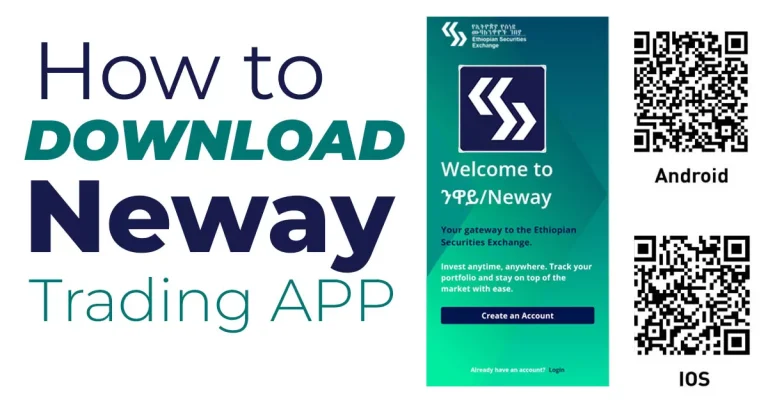
If you haven’t installed the app yet, start with our Neway download guide.
Quick reset: try these first
Most app problems respond to the same basic steps. Do them in this order before trying anything specific:
- Update Neway in Google Play or the App Store. The latest versions we saw were released on June 29, 2026, but reviewers kept reporting problems after that date, so updating helps but is no guarantee.
- Restart your phone. It clears stuck processes that cause blank screens and freezes.
- Check your date and time. Set them to automatic. A wrong clock can break secure connections.
- Check your connection. Switch between Wi-Fi and mobile data. Turn off any VPN.
- Free up storage. A nearly full phone can make apps misbehave.
- Reinstall as a last resort. Make sure you remember your login details first. Your investor account is held on the exchange and broker systems, not only on your phone, but you will need to sign in again.
“Debug mode detected” (Android)
What users report: One Google Play reviewer said the app showed a debug-mode security warning every time it opened, even after developer options and USB debugging were turned off. The same person also saw a blank “Select your broker” screen.
What it likely means: Financial apps often check whether a phone is set up for development or has tools that can inspect or change the app. A warning appears when the app thinks it detects one. We can’t tell exactly which check Neway uses, and checks like this can misfire.
What to try:
- Open Settings, then System or About phone, then Developer options. The menu name and location vary by brand. Switch the master toggle at the top to off. Turning off only USB debugging may not be enough.
- Also switch off USB debugging and Wireless debugging if you see them.
- If you use a custom ROM, a rooted phone or an emulator, expect the app to refuse to run. This is a security design choice, not a bug.
- Restart the phone and reopen Neway.
- If it still blocks you, send the support team your phone model, Android version and app version (see “How to contact support” below).
Don’t install modified APKs or “root hiding” tools to get around the warning. They put your login and ID at risk.
“Device is jailbroken” (iPhone)
What users report: An App Store reviewer said the app blocked them with a jailbreak message even though the phone was not jailbroken. On a second device, the same person couldn’t even enter a mobile number.
What it likely means: Neway appears to run a security check for jailbroken phones. Reviewers say it can trigger by mistake.
What to try:
- Update iOS and Neway, then restart the phone.
- If the phone was ever jailbroken in the past, leftover files may still trigger the check. Restoring the phone is the only reliable cleanup, so back it up first and think carefully before doing this.
- Try another iPhone or iPad if you have one.
- If nothing works, contact support with your iPhone model, iOS version and app version.
The mobile number field won’t accept input
What users report: The same reviewer could not type a mobile number on one device.
What to try: Update the app, restart the phone, switch to the default keyboard, and reinstall. If it works on another device but not yours, report it to support with your phone model and OS version.
Registration fails, freezes or shows a connection error
What users report:
- An iPhone user saw a “connection errored” message mentioning a bad file descriptor and couldn’t register.
- A Google Play reviewer said registration didn’t work properly and some details couldn’t be edited.
- Another App Store reviewer, writing from outside the country, said account creation wouldn’t go through after everything was filled in.
What it likely means: The first error looks like a low-level network failure, not a problem with your details. The others could be server issues, validation problems, or a location restriction.
What to try:
- Use a stable connection with no VPN. Try a different network.
- Update the app and retry later. Busy periods can slow verification.
- Don’t create several accounts with the same details. If registration seems stuck, ask the broker you selected to check your application status.
- If your information is wrong and the app won’t let you edit it, ask your broker or support how to correct it.
- If you’re outside Ethiopia, the app appears to be built for investors based in Ethiopia. Ask a broker before relying on it from abroad.
The “Select your broker” screen is blank
What users report: A Google Play reviewer saw an empty broker list, which blocked them from continuing.
What to try:
- Check your connection and switch between Wi-Fi and mobile data. Turn off any VPN.
- Force-close the app and reopen it. On Android, you can also clear the app’s cache (Settings, then Apps, then Neway, then Storage, then Clear cache). Clear the cache, not the data.
- Wait and retry later. If the list loads from a server, an outage is something only the developer can fix.
Wrong chart, repeated log-ins, or trouble cancelling an order
What users report: A Google Play reviewer said a bank’s chart showed another company’s data, that switching apps forced a new login, and that they couldn’t cancel an order.
What to do:
- Don’t trade on a screen you doubt. Check the price against ESX’s published market information or ask your broker.
- For a stuck order, call your broker right away. ESX’s trading manual says the trading member who entered an order can change or cancel it, so your broker can act on it from their side.
- Day orders expire at the end of the trading day if they aren’t filled, so confirm with your broker whether the order is still open.
- If the app logs you out when you switch apps, that’s inconvenient but also a security behavior. Keep your login details handy.
It might not be a bug
Some problems are just how the market works. ESX’s manual sets these rules:
- 8:00 to 8:59 AM: the system is loading, and no orders are accepted.
- 9:00 to 9:30 AM (pre-open): only limit orders are allowed, and no trades happen. A market order will be rejected.
- 3:30 to 5:00 PM: no new orders or changes.
- Technical failures: the manual allows ESX to cancel a trade if its settlement message can’t reach the depository because of a technical fault. Your holding is then restored to where it was before.
Orders can also be rejected for account reasons: no valid CSD trading account, not enough cash or shares, a price outside the daily limit, or a quantity below the minimum. Our trading guide explains each of these.
Who to contact
- Account, verification, deposits or orders: your broker (trading member). They can see your account on their side.
- The app won’t open, shows a security warning, or crashes: app support. Both store listings ask users to email support instead of posting in reviews, and the Google Play page lists infotechgroup.pk@gmail.com.
- Exchange-wide issues or market rules: ESX at esx.et.
What to put in a support message
A clear message gets a faster answer. Include:
- Your phone model and Android or iOS version
- The Neway app version (in the store listing or the app’s info screen)
- The exact error text or a screenshot (cover any ID numbers, phone numbers or one-time codes)
- What you were doing when it happened
- What you’ve already tried
Never share your PIN, password or one-time code with anyone, including people who claim to be support.
Frequently asked questions
Why does Neway say my phone is jailbroken or in debug mode?
The app seems to run security checks for modified phones and development settings. Reviewers say these can trigger on normal phones. Switch off developer options on Android, update everything, and contact support if it persists.
Why is the broker list blank?
Usually a connection or server problem. Check your network, turn off any VPN, retry later, and report it if it stays empty.
Can I register from outside Ethiopia?
The app appears to be built for investors based in Ethiopia, and one reviewer abroad could not finish registering. Confirm with a broker.
Is it safe to uninstall and reinstall?
Generally yes, because your account isn’t stored only on your phone. But have your login details ready first.
My order is stuck. What do I do?
Contact your broker immediately. They can see and, under ESX’s rules, change or cancel orders they entered for you.
Is Neway down?
Check whether others have the same problem in investor groups, and make sure the market is in a session where orders are accepted. If the problem continues, contact your broker or ESX.
Will the latest update fix my problem?
Maybe. The newest versions we saw were released on June 29, 2026, but reviews after that date still described some of these errors.
Sources
- User reviews on Google Play and the App Store (paraphrased)
- ESX Main Market Trading Manual
- ESX launch announcement for Neway
Before you rely on this
This guide is general information, not official support, and Capital251 is not affiliated with ESX, Infotech or any broker. Reviews reflect individual experiences, and app versions change, so steps that worked for one person may not work for you. Never put your money at risk because of an unverified screen, and confirm anything involving your account or orders with your broker.